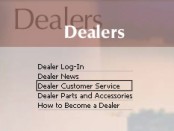
Dealer Customer Service
Service - Customer Listing
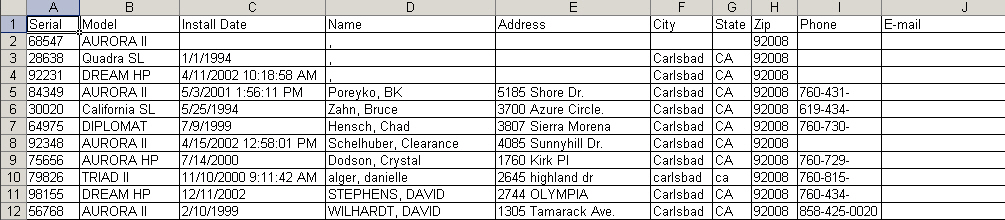
Clicking the "Customer Listing" button will provide you a listing of all customers within your assigned territory.
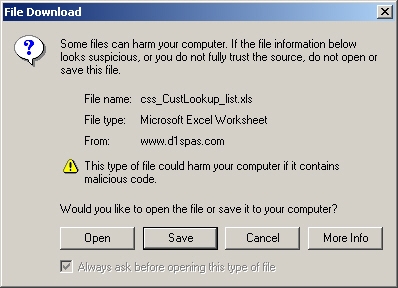
If you click Save, you will be prompted for a location on your local computer to save this file. Please be aware that if you save the file to your local computer, it will no longer be dynamically updated by the website or your staff using the many Customer Service features.
If you click Cancel, your Customer Lookup will be cancelled and you will be returned to the previous screen.
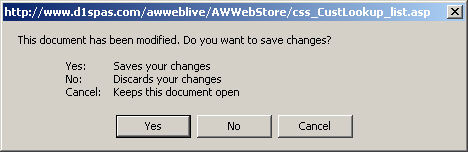
If you click Yes, you will be prompted to save the file to a location on your local computer to save this file. Please be aware that if you save the file to your local computer, it will no longer be dynamically updated by the website or your staff using the many Customer Service features.